
Super Bear Adventure Beta on TV: Big Screen and Controller Guide

Play Super Bear Adventure Beta on your TV with this guide to casting, HDMI and Android TV options, Bluetooth controller pairing, input lag fixes, and family couch play tips.

Earthkwak Games

Super Bear Adventure Beta on TV: Big Screen and Controller Guide

Super Bear Adventure Beta was made for a couch. Its storybook kingdom, gentle pace, and rescue-the-bears story are exactly the kind of game families gather around, and the TV is where it shines brightest. Whether you cast from a phone, connect a laptop, or run it on an Android TV device, the setup takes minutes once you know the options.

This guide compares the three main routes to the big screen, explains controller pairing, and fixes the one problem that spoils TV platforming when it appears: input lag. Get those right and the game feels like it was designed for your living room all along.

For the main app page, visit Super Bear Adventure Beta for Android.

Three Ways to Get the Game on Your TV

Casting from your phone is the quickest route: the game stays on the phone, the picture goes to the TV, and you keep playing with touch controls while everyone watches. It is perfect for showing off a secret or letting kids watch a rescue, but the phone stays in your hands and casting adds a little delay.

Connecting a laptop or PC by HDMI gives the sharpest picture and lets a controller do the work, which suits long sessions. An Android TV box or stick running the game directly is the most living-room-native option of all: pick up a controller, the game is simply there. Choose based on session length; short watches cast well, long adventures deserve the direct routes.

TV routes compared:

  • Phone casting: fastest, best for watching
  • HDMI from PC: sharpest, best for long play
  • Android TV device: most convenient daily
  • All three: fine for this game's pace

Pairing a Bluetooth Controller

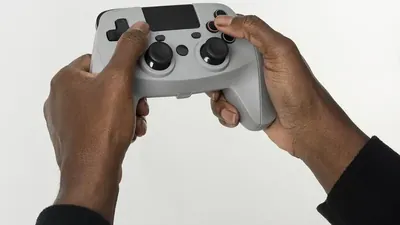
TV play transforms with a controller. Put the controller in pairing mode, open Bluetooth settings on the device running the game, and connect; most standard controllers are recognised immediately. Check the in-game feel in the hub before starting a real session, and remap if the emulator or system offers mapping and jump sits somewhere strange.

Keep the controller charged. The classic TV-gaming failure is a controller dying mid-boss, and platformers are unforgiving about the seconds spent fumbling for a cable. A charging cable kept by the couch is the cheapest insurance in gaming.

Fixing Input Lag on TV

If Baaren jumps a moment after you press, your TV is processing the picture. Switch the TV to its Game Mode, which disables the smoothing and enhancement features that delay the image. This single setting is responsible for nearly every 'TV gaming feels wrong' complaint ever made, and fixing it takes one minute in the picture menu.

Reduce the chain where you can: wired connections beat casting, casting beats nothing, and sitting closer to a Bluetooth receiver helps marginal cases. This game is more forgiving than a fighting game, but precise jumps still notice lag, so Game Mode plus the shortest practical chain is the combination to aim for.

Lag-fighting checklist:

  • Enable TV Game Mode
  • Prefer HDMI or direct play over casting
  • Keep controller charged and close
  • Turn off motion smoothing features
  • Use the TV's game HDMI port if labelled

Family and Couch Play Habits

The big screen invites an audience, so lean into it. Pass the controller at each rescue, let younger players handle collecting in safe areas while an experienced thumb takes the hard jumps, and narrate the purple honey story as it unfolds. The game's structure, with its regions and rescues, naturally breaks into couch-friendly turns.

Set the session length before you start if children are playing; the 'one more region' pull is strong with this game. A visible stopping point, such as finishing a region or completing the daily challenge together, ends sessions happily instead of mid-argument. The parents' guide covers age fit and supervision in more depth.

Picture and Sound Settings for the Kingdom

On a big screen, raise in-game brightness a touch if your TV room is bright; the game's softer colours wash out faster than a shooter's would. Sit at a distance where the whole screen fits your view without head movement, because platforming needs peripheral sight of ledges and coin trails.

Turn the sound up more than feels polite. Bear calls that guide rescues, enemy cues, and the gentle soundtrack all carry gameplay information, and on TV speakers across a room they are easy to lose. The audio is half the guidance system in this game; the big screen deserves the full signal.

TV Settings Beyond Game Mode

Once Game Mode is on, two more settings deserve a look. Sharpness pushed too high makes the game's soft art look crunchy and can exaggerate edges distractingly; the middle of the range usually flatters it. Colour temperature on the warmer side suits the kingdom's storybook palette better than the blue-white 'vivid' presets shops display.

If your TV offers a per-input picture memory, save these choices to the gaming input so the family's film settings survive your platforming. Households fight about TV settings exactly once per input that lacks its own memory.

TV picture checklist:

  • Game Mode on for the gaming input
  • Motion smoothing off
  • Sharpness near the middle
  • Warm colour temperature
  • Settings saved per input if supported

Sound: Speakers, Soundbars, and Headphones

TV speakers across a room are the weakest link in the rescue-by-sound system. A modest soundbar at the screen restores the directionality and presence that bear calls need, and even a small Bluetooth speaker placed near the players outperforms large speakers behind a distant TV.

For late-night sessions, headphones keep the guidance system intact without waking the house. Many TVs and controllers offer a headphone jack or Bluetooth audio; use it rather than playing muted, because muted TV play loses half the game's information.

Making TV Play a Family Habit

The living-room version of the daily habit works beautifully: one challenge or one rescue on the big screen as a shared appointment. It gives children a bounded, parent-approved gaming ritual and gives the whole household a small story that continues night to night.

Keep the controller's home consistent, a basket by the couch, a cable in the drawer, so starting takes thirty seconds. Friction, not interest, is what kills family gaming habits, and every stored cable is a small vote for the habit surviving.

Conclusion

TV play is Super Bear Adventure Beta at its most generous: a kingdom big enough to share, rescues the whole couch can celebrate, and a controller that makes Baaren feel like a storybook hero. Game Mode on, controller charged, and the living room becomes the hub world.

However you connect, keep the first big-screen session short and joyful rather than completionist. The families who fall for this game on TV are the ones who passed the controller around on night one, and that memory, not a finished region, is what brings everyone back to the couch.

Download APK
Nathan Brooks

Reviewed by

Nathan Brooks

3D Platformer Games Reviewer

Nathan plays and tests Super Bear Adventure on real Android phones, checking frame pacing, controls and multiplayer before any version is listed here.

More about Nathan Brooks