
How to Play Super Bear Adventure Beta on PC and Laptop

Play Super Bear Adventure Beta on a PC or laptop with this guide to Android emulators, system requirements, controller setup, key mapping for platforming, and save safety tips.

Earthkwak Games

How to Play Super Bear Adventure Beta on PC and Laptop

A bigger screen changes Super Bear Adventure Beta. Secrets you squinted at on a phone become obvious, long jumps feel calmer, and Baaren's kingdom looks like the storybook it always wanted to be. Playing on PC or laptop means running the Android game through an emulator, and while the setup is straightforward, a few choices decide whether it feels native or laggy.

This guide covers picking an emulator, the PC requirements that actually matter, mapping controls for a platformer, and keeping your progress safe. It assumes you already have the game running on Android; if not, start with the installation guide for Android first.

For the main app page, visit Super Bear Adventure Beta official site.

Choosing an Android Emulator

Mainstream Android emulators all run this game comfortably, because Super Bear Adventure is a modest 3D title rather than a hardware-pushing shooter. Pick a well-known emulator with a good update record, download it only from its official website, and avoid obscure emulator bundles that attach unwanted software to the installer.

During setup, give the emulator instance at least two CPU cores and a few gigabytes of RAM in its settings if your PC allows it. That single adjustment prevents most stutter, and it matters more than any graphics toggle. A laptop with integrated graphics from the last several years handles the game at comfortable settings.

Emulator setup checklist:

  • Download only from the official emulator site
  • Assign 2+ CPU cores in settings
  • Assign 3-4 GB RAM if available
  • Enable virtualization in BIOS if prompted
  • Keep the emulator updated
  • Install the game from a trusted source only

Mapping Controls for a Platformer

Keyboard mapping deserves ten careful minutes. Put movement on WASD or the arrow keys, jump on a key your strongest finger owns, and attack somewhere reachable without moving your movement hand. Camera control maps naturally to the mouse, and that combination, mouse camera with keyboard movement, is where PC play genuinely outclasses touch.

Test your layout in the safe hub before attempting real platforming. If a jump sequence needs a finger stretch, remap now rather than adapting to a bad layout for fifty hours. The controls guide explains which abilities matter most, which helps you decide what gets the best keys.

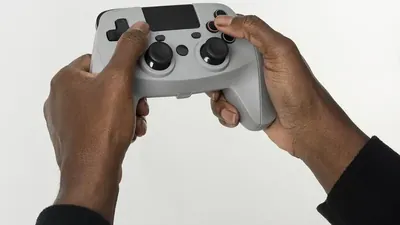
Using a Game Controller on PC

A controller is the most comfortable way to play this game on a PC for many players, because the game was designed around twin-stick-style movement and camera habits. Most emulators detect standard controllers automatically; check the mapping screen once to confirm jump and attack sit where your thumbs expect them.

Wireless controllers add a whisper of input delay that precision jumps can feel. If a hard section keeps failing by a fraction, plug the controller in with a cable before blaming the jump. That one change rescues more boss attempts than any setting in the emulator.

Performance Settings That Matter

If the game stutters, lower the emulator's rendering resolution before touching anything else; the kingdom stays charming at modest resolutions and the frame rate recovers immediately. Close the browser tabs and background apps your PC has accumulated, since emulators compete for the same RAM and CPU.

Laptop players should play plugged in. Battery power plans throttle processors aggressively, and a game that runs beautifully on mains power can judder on battery even with charge to spare. One cable removes an entire category of mysterious performance problems.

Quick performance fixes:

  • Lower emulator render resolution first
  • Play laptops plugged into power
  • Close memory-heavy background apps
  • Use the performance graphics mode if offered
  • Restart the emulator between long sessions

Save Safety and Playing on Two Devices

Emulator progress lives inside the emulator's data on your PC, so treat it like any save file you care about: use the emulator's backup or export features before reinstalling anything, and never assume a phone save and a PC save are the same progress. They are separate journeys unless the game's own systems link them.

Many players keep the phone version for daily challenges on the move and the PC version for long exploration sessions, starting fresh on PC and enjoying the early game again with better controls. Whichever you choose, decide consciously; accidentally splitting progress across devices is the one PC-play mistake that genuinely stings.

Phone vs PC: An Honest Comparison

PC play wins on view and comfort: secrets are easier to spot, sessions can run longer without arm fatigue, and the mouse camera is genuinely superior for scanning regions. Phone play wins on presence: the game is simply with you, and its short-session design, daily challenges, quick rescues, was born for pockets.

Neither replaces the other, which is why so many players keep both. Trying PC play does not commit you to it, and the healthiest setup is the one matching the session: desk for expeditions, phone for the daily five minutes.

Where each platform wins:

  • PC: visibility, camera, long sessions
  • PC: controller comfort
  • Phone: availability and daily habits
  • Phone: touch-native feel
  • Both: the same kingdom, honestly enjoyed

Emulator Safety and Trusted Sources

The emulator itself is software with system-level reach on your PC, so its source matters more than the game's does. Download only from the emulator's official website, keep it updated, and decline bundled extras during installation with the same suspicion you would give any installer.

Install the game inside the emulator from trusted sources only, exactly as you would on a phone. The rules of APK safety do not relax because a computer is involved; if anything, a PC holds more worth protecting, so its standards should be higher.

Playing With Keyboard Only

Some players prefer pure keyboard play, and the game cooperates if the mapping is thoughtful. Put camera rotation on keys your free fingers can hold while moving, because camera-while-moving is the one two-handed act the keyboard must reproduce faithfully.

Expect a short adjustment period where keyboard play feels worse than touch did. Motor learning is honest: three sessions is the usual price, after which most players report the keyboard disappearing from their attention entirely, which is the sign of a good mapping.

Conclusion

On PC, Super Bear Adventure Beta trades portability for presence: a wide view for secrets, a mouse for the camera, and a proper chair for the long regions. Set the emulator up with enough cores and RAM, map jump somewhere your hand trusts, and the game settles in beautifully.

Keep the phone version in your life too, even if PC becomes home. Daily challenges on the sofa and boss attempts at the desk is not indecision; it is this gentle game fitting itself around a real day, which is what it was always best at.

Download APK
Nathan Brooks

Reviewed by

Nathan Brooks

3D Platformer Games Reviewer

Nathan plays and tests Super Bear Adventure on real Android phones, checking frame pacing, controls and multiplayer before any version is listed here.

More about Nathan Brooks